Docs Guides
Set up instant forwarding
Get every new post from chosen channels the moment it's published — in your bot chat or reposted to your own channel, cleaned up the way you want.
Create a Forwarding profile
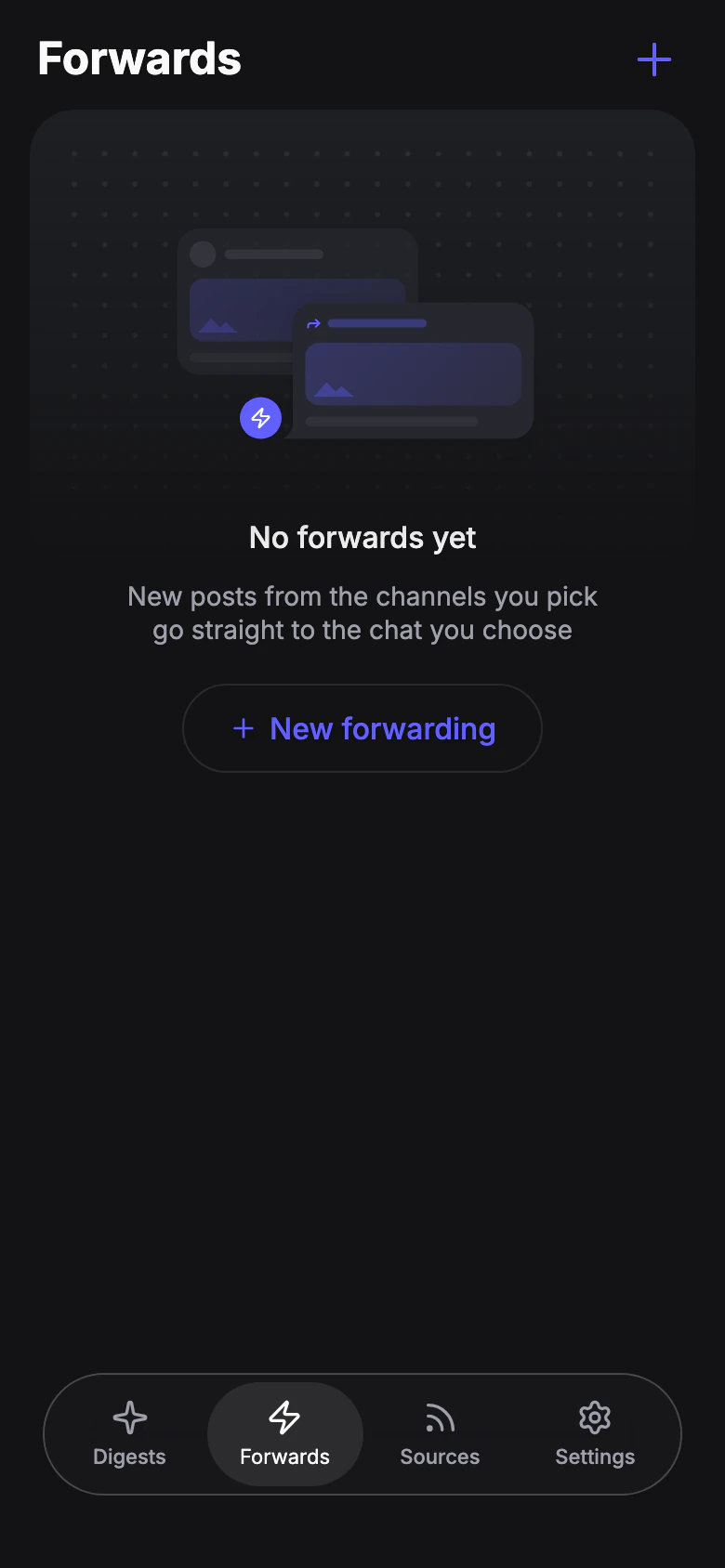
Open the Forwards tab and tap + (or New forwarding, while the tab is empty). The profile opens on one screen: the name on top — “My forwarding” until you change it — and its sections below.
Each profile is one stream. Make separate ones for different topics or channels.
Add sources
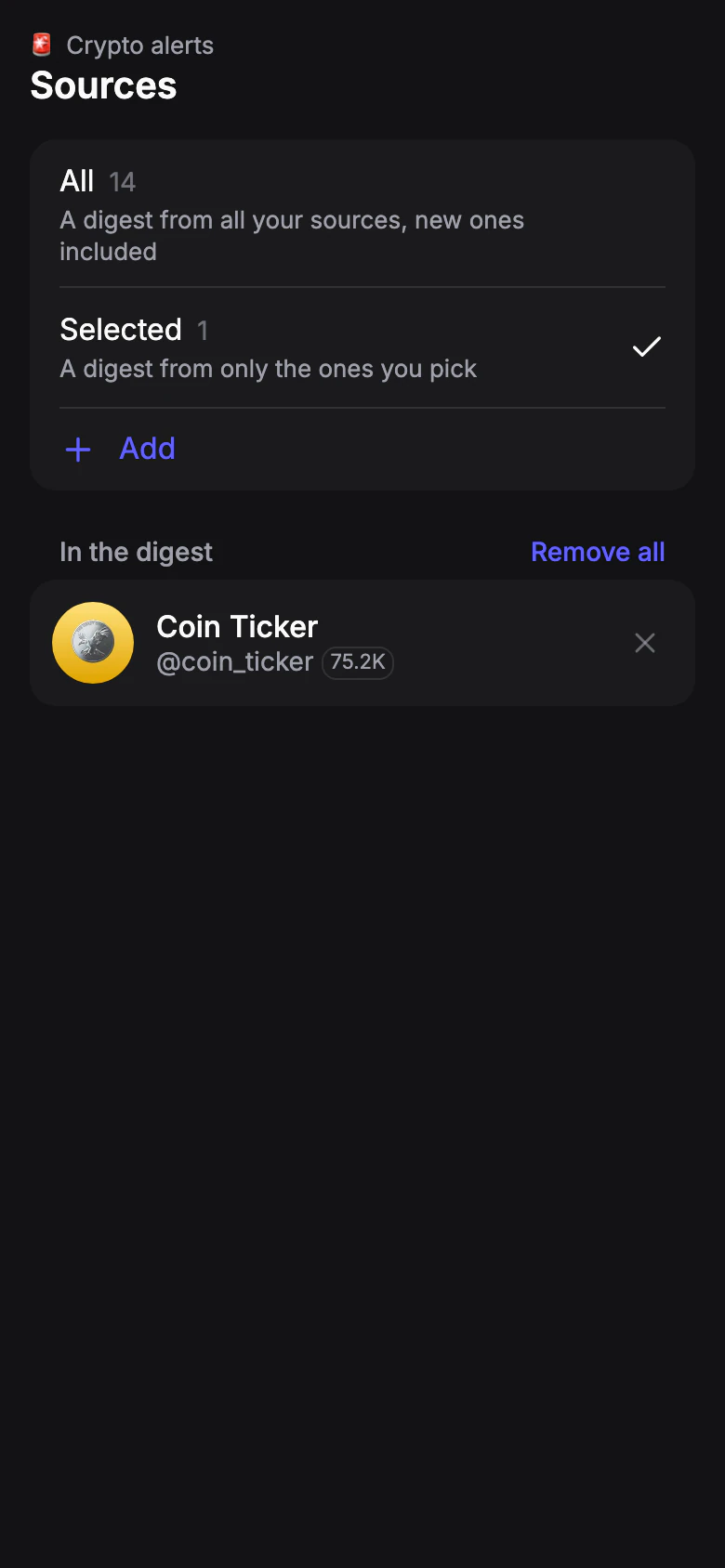
Open Sources and tap Add. A Forwarding profile starts empty, so pick only the channels you want every post from.
Keep only the posts you need
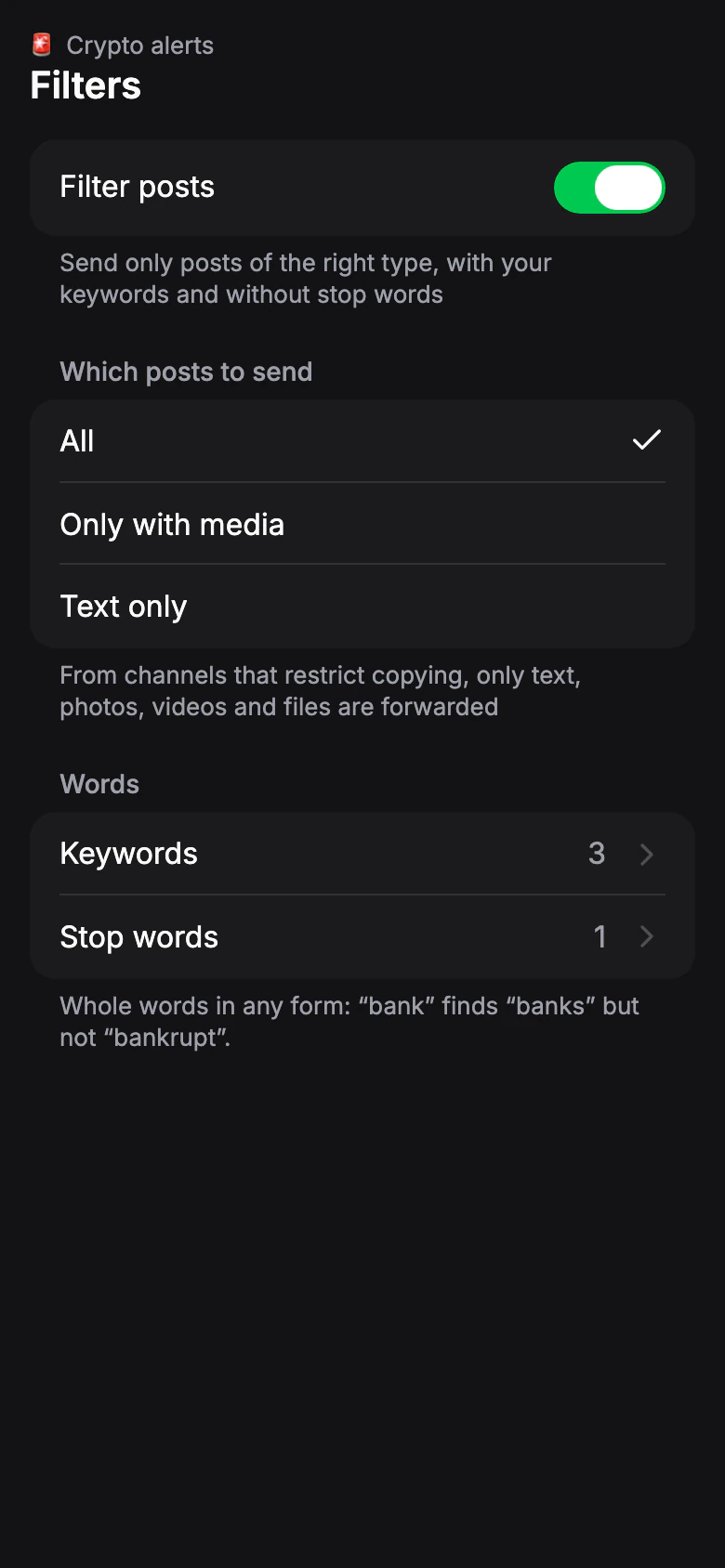
Optional. In Filters, choose which posts to send — all, only with media, or text only — and add keywords or stop words. See Choose what gets through.
Clean up the posts
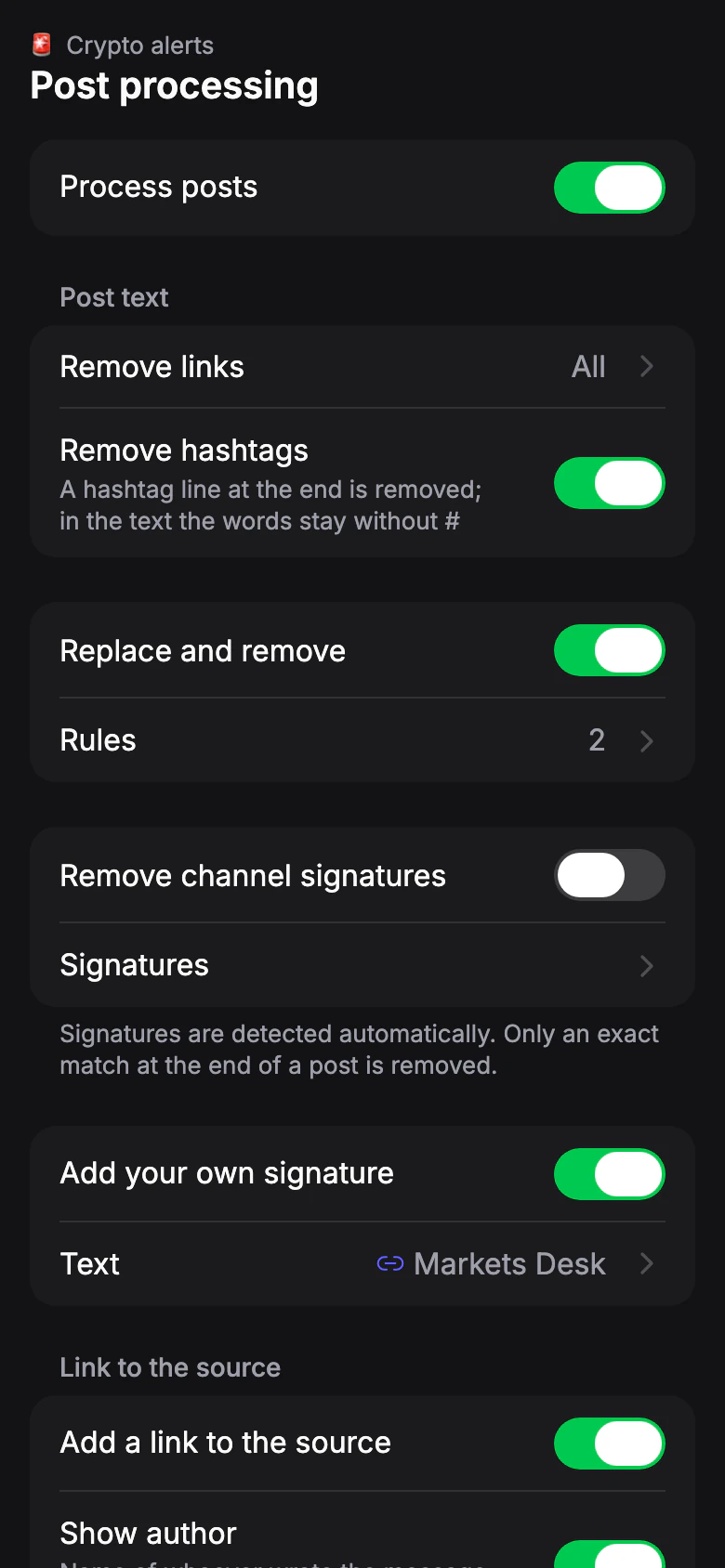
Optional. In Post processing, turn on Process posts to remove links and hashtags, replace words, cut channel signatures and add your own. Tap See how a post will look to check the result on recent posts. Nothing is sent.
Turn off Add a link to the source if posts should look like your own.
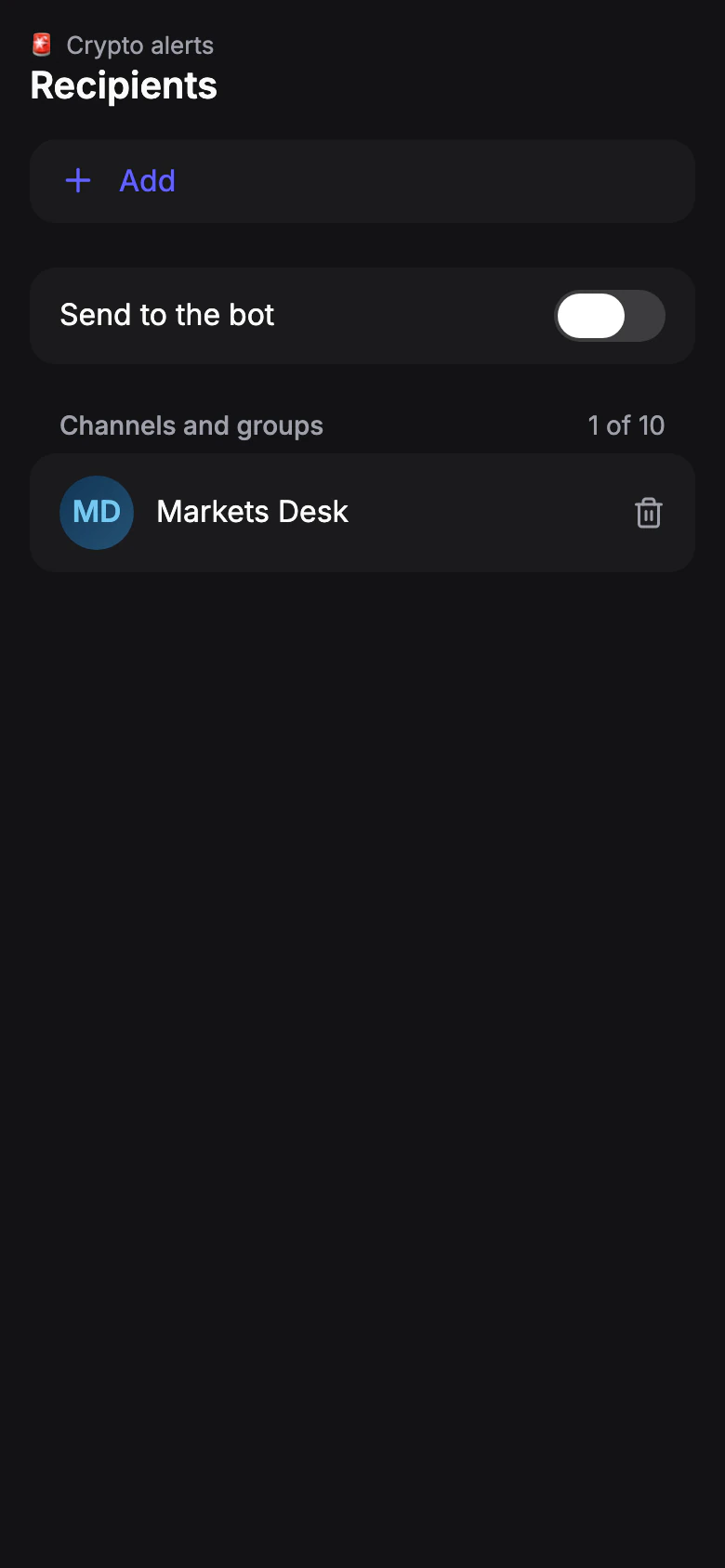
Choose where posts go
Posts arrive in your chat with the bot. To repost to your channel or group, open Recipients and add it — see Post to your channel or group. In Delivery, you can make posts arrive silently or protect them from forwarding.
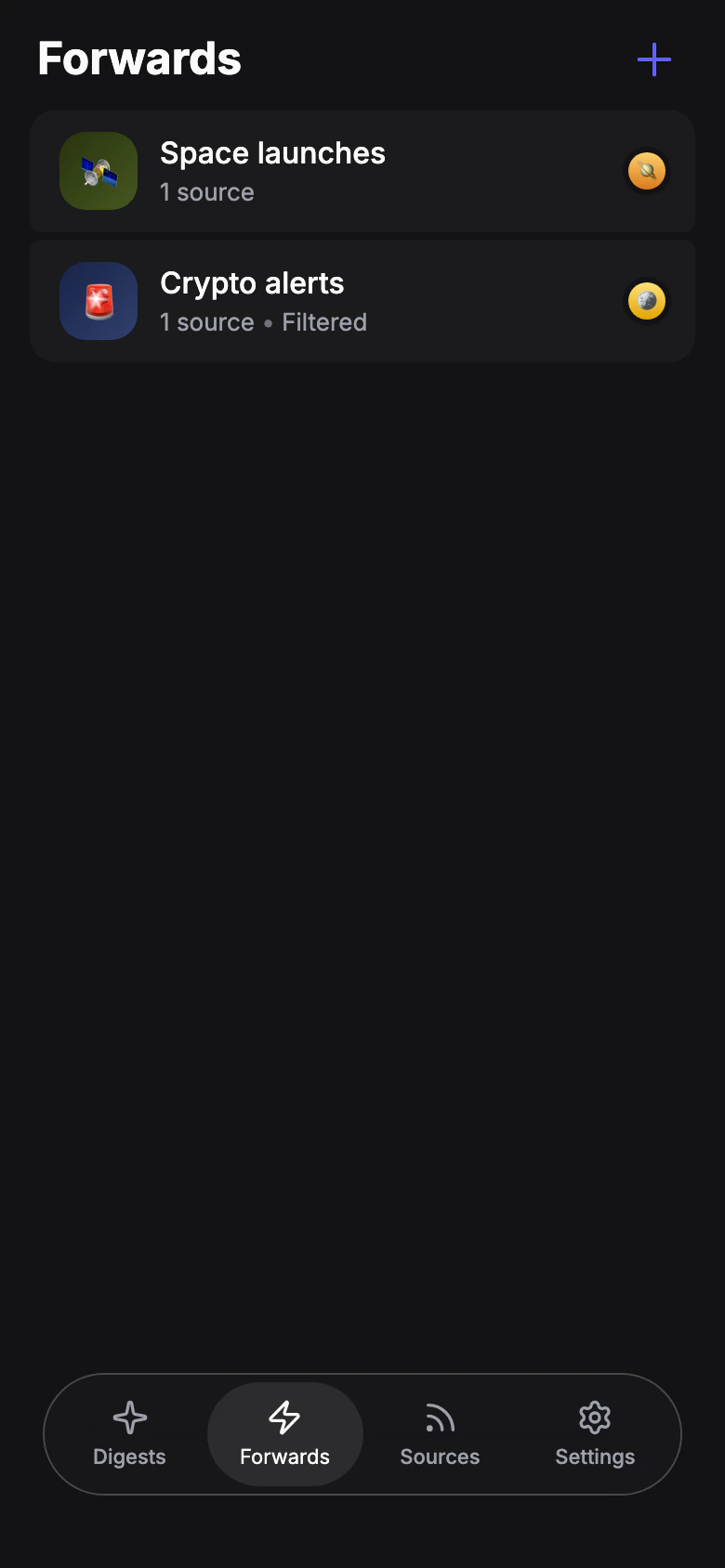
Create the profile
Tap Create. From now on every new post arrives right away. If a source edits a post later, the copy is updated too.